
The Batch Search Dashboard is your go-to place to upload new batch searches, review a list of previously uploaded batches as well as search by file name, team or individual who uploaded the batch.
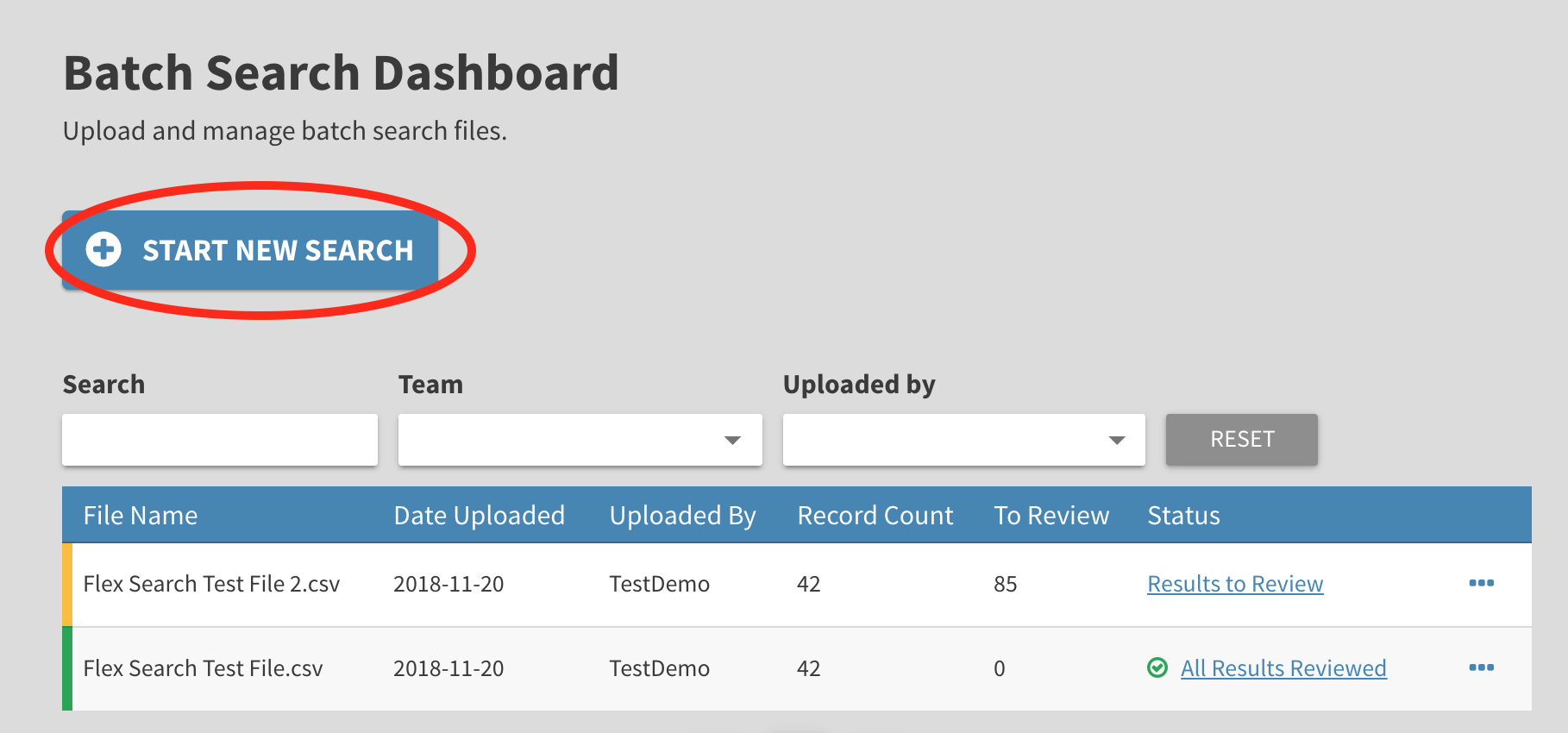
To upload a new Batch Search, click on Start New Search to select the type of search you wish to perform and upload your new file.
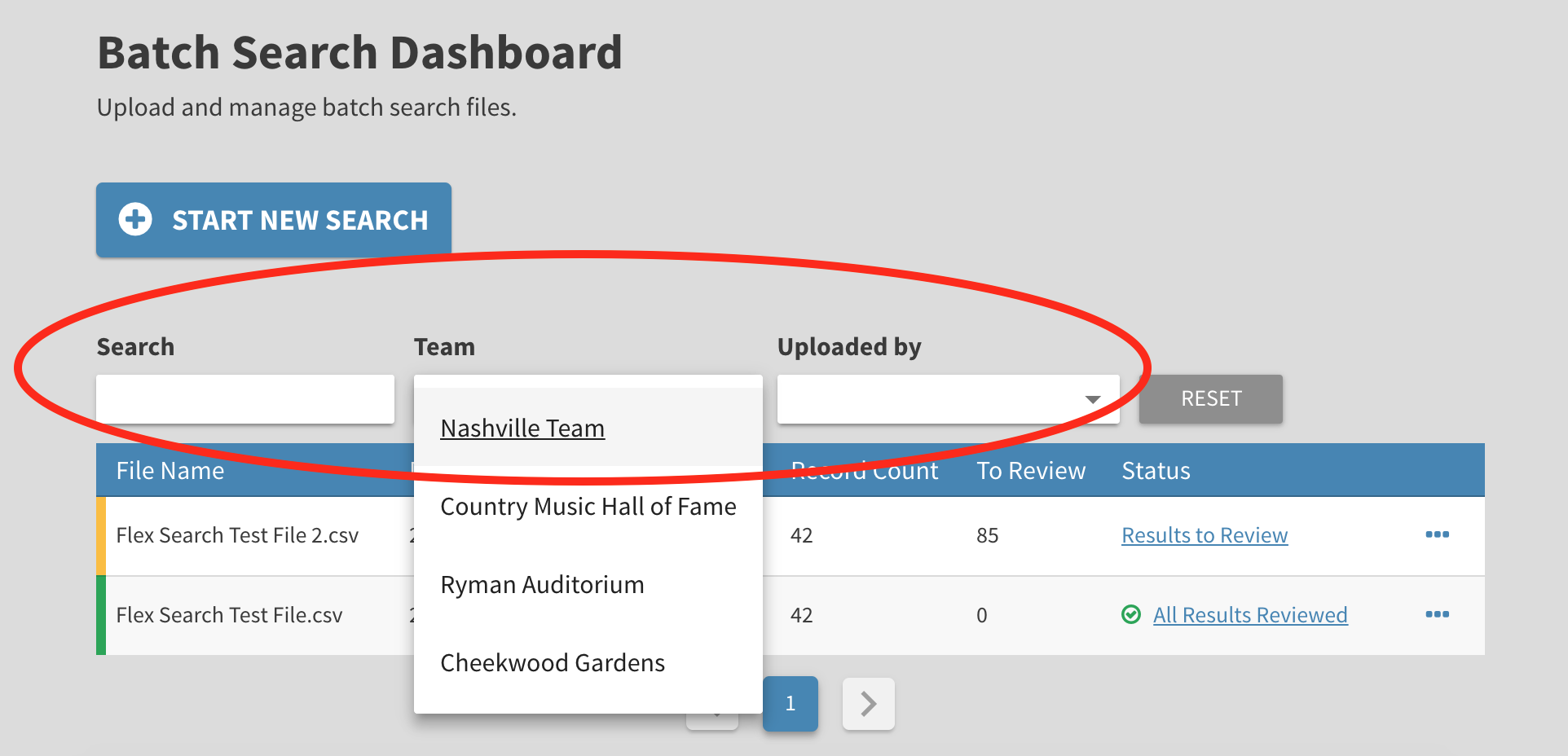
The search filters will allow you to sort to specific file names, teams or users who uploaded searches.
Each line will include the name of the file, the date and user who completed the search, how many items searched on the file and number of outstanding items left to review. You can review your results at anytime by clicking the links under Status. Searches with results left to review will be identified as yellow on the left side. Searches with all results reviewed are identified as Green.
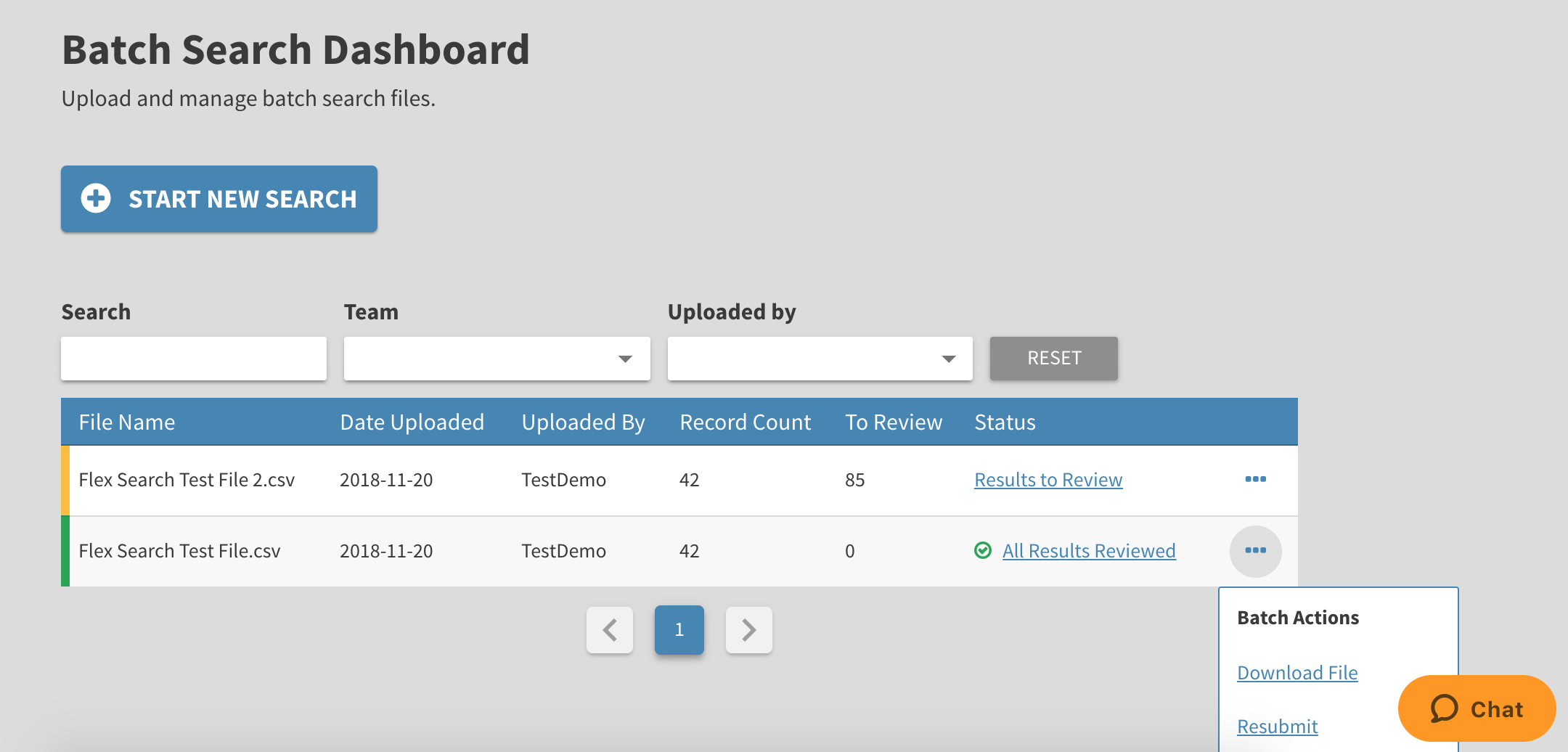
By clicking the small dots to the right of the batch, you will find some additional actions including Downloading the file and Resubmitting the same batch for a new search.
Next: For information on how to upload a new batch, please read the following article: How to Upload a New Batch?
Need more support? Follow along with our Batch Search Training Video available: New Batch Search Video Walkthrough
Comments
0 comments
Please sign in to leave a comment.