
In ExclusionCheck, a "team" is a way to create division between different facilities, units, departments, etc within ExclusionCheck. It allows users at different locations to keep their search history and notes private and also gives oversight for HQ or corporate users to see searches made by other teams.
Teams are set up as a hierarchy so that you can only see your own team and any team below yours. You may not see teams that are at equal levels in the hierarchy and teams below yours will not see your search history.
In the example below, a user at the "Corporate" team could see all Regions and Facilities on the teams below. A user with access to Region A can see their team and Facilities 1 and 2. A user at Facility 1 can only see Facility 1 and cannot see any searches above or at Facility 2.
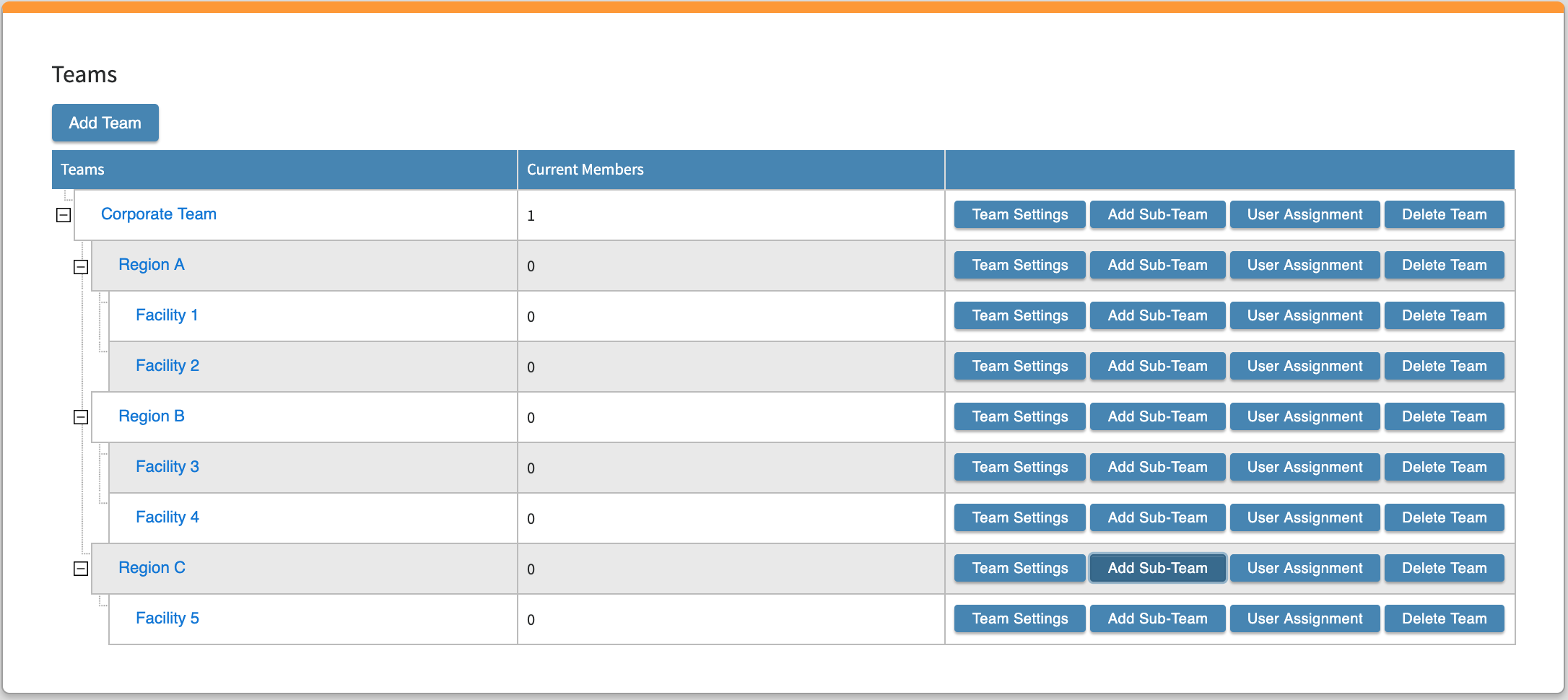
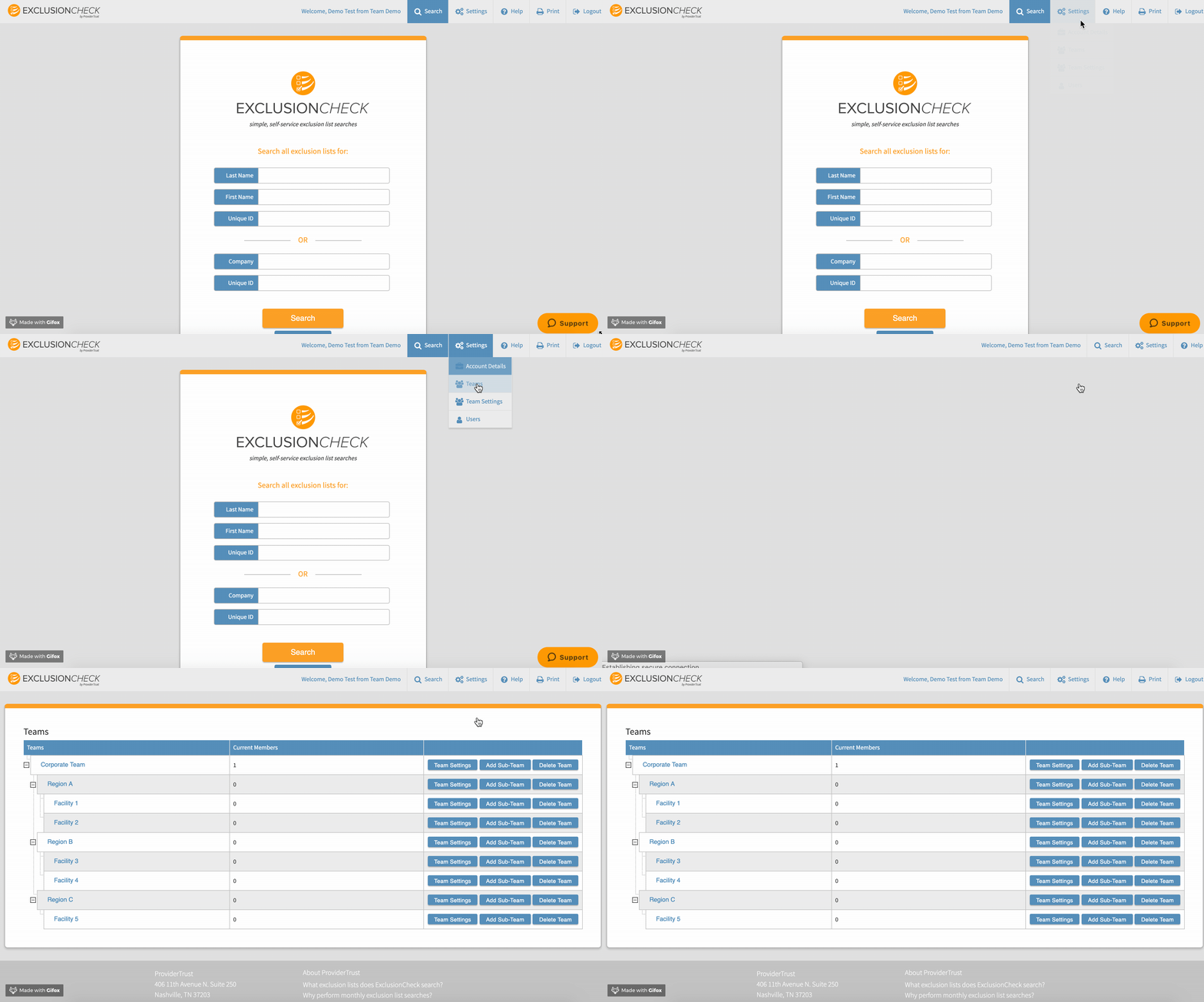
To access your teams, your administrator must first login to ExclusionCheck and toggle to "Teams" under the Settings menu.
To add a new team, you must first determine if the team will be equal to your top level team, or a sub-team. To create a top level team, you press "Add Team" at the top of the page under the Team section or choose which team you want your sub-team to exist under and press "Add Team" to go below that level.
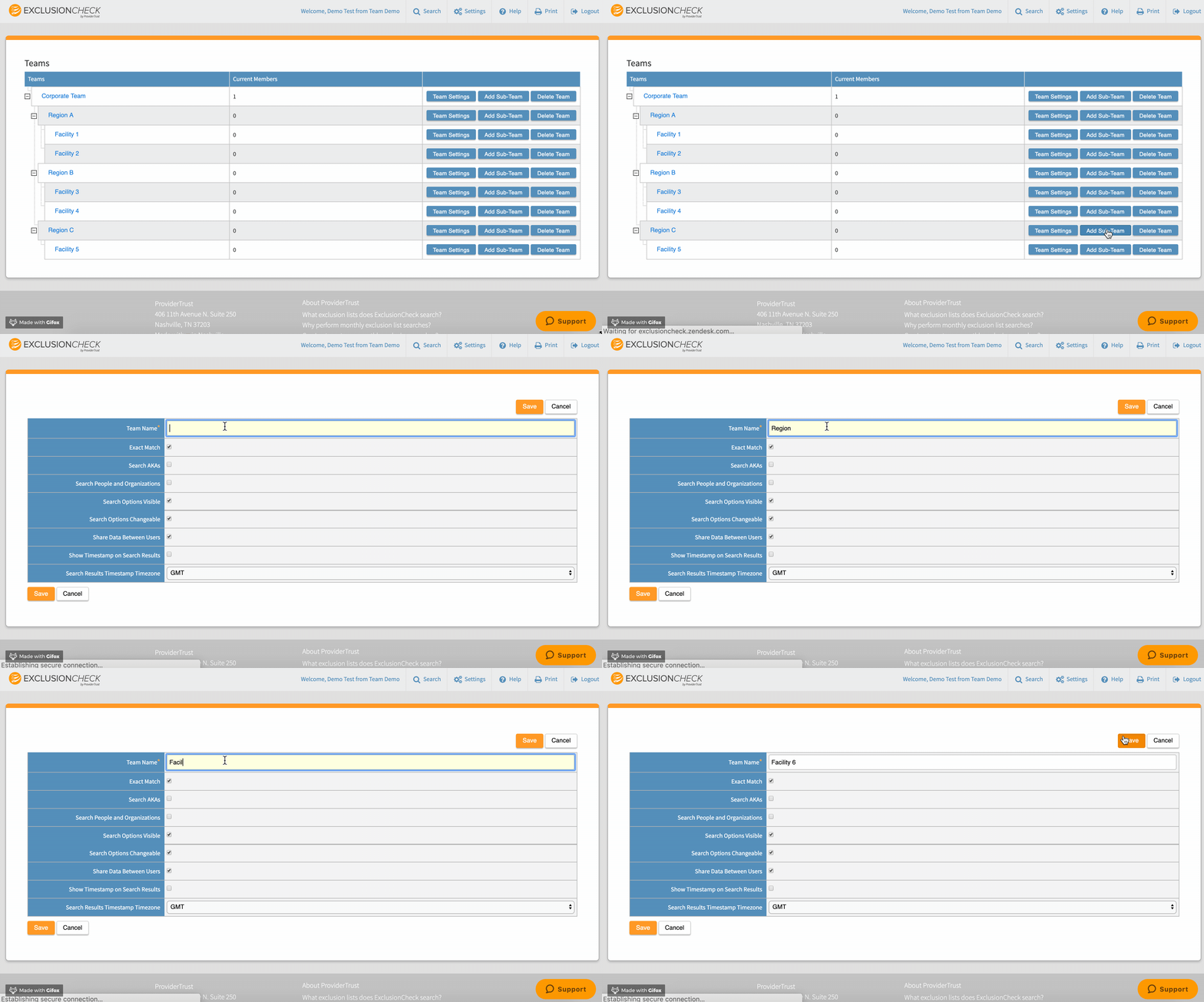
You will provide a team name, review any additional settings and press "Save."
Comments
0 comments
Article is closed for comments.