
In ExclusionCheck, you can download reports based around an individual, specific searches or search results over a chosen timeframe.
From Batch Name search
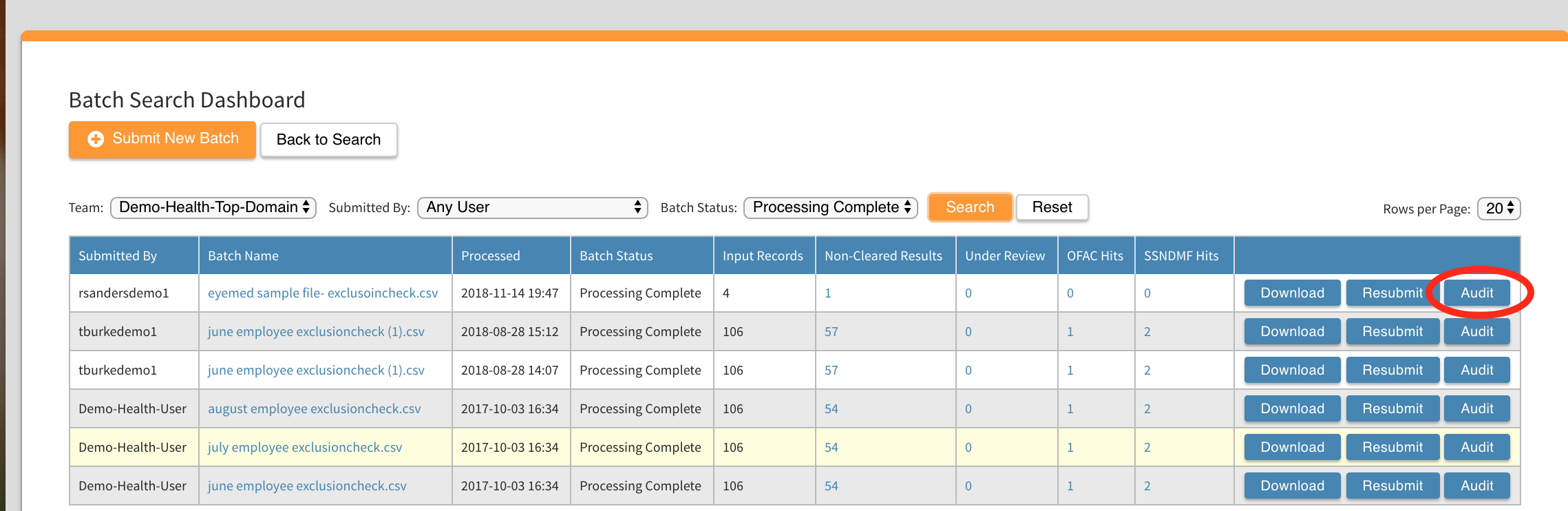
From the Batch Name search page, you can download audit reports based on the specific searches you performed by clicking Audit to the right of the chosen search. This report includes a list of all criteria searched, results and if there are any outstanding records to review.
From new Batch Search
With in the new batch search, reports are available from the search results.
First, find the search you wish to report on.
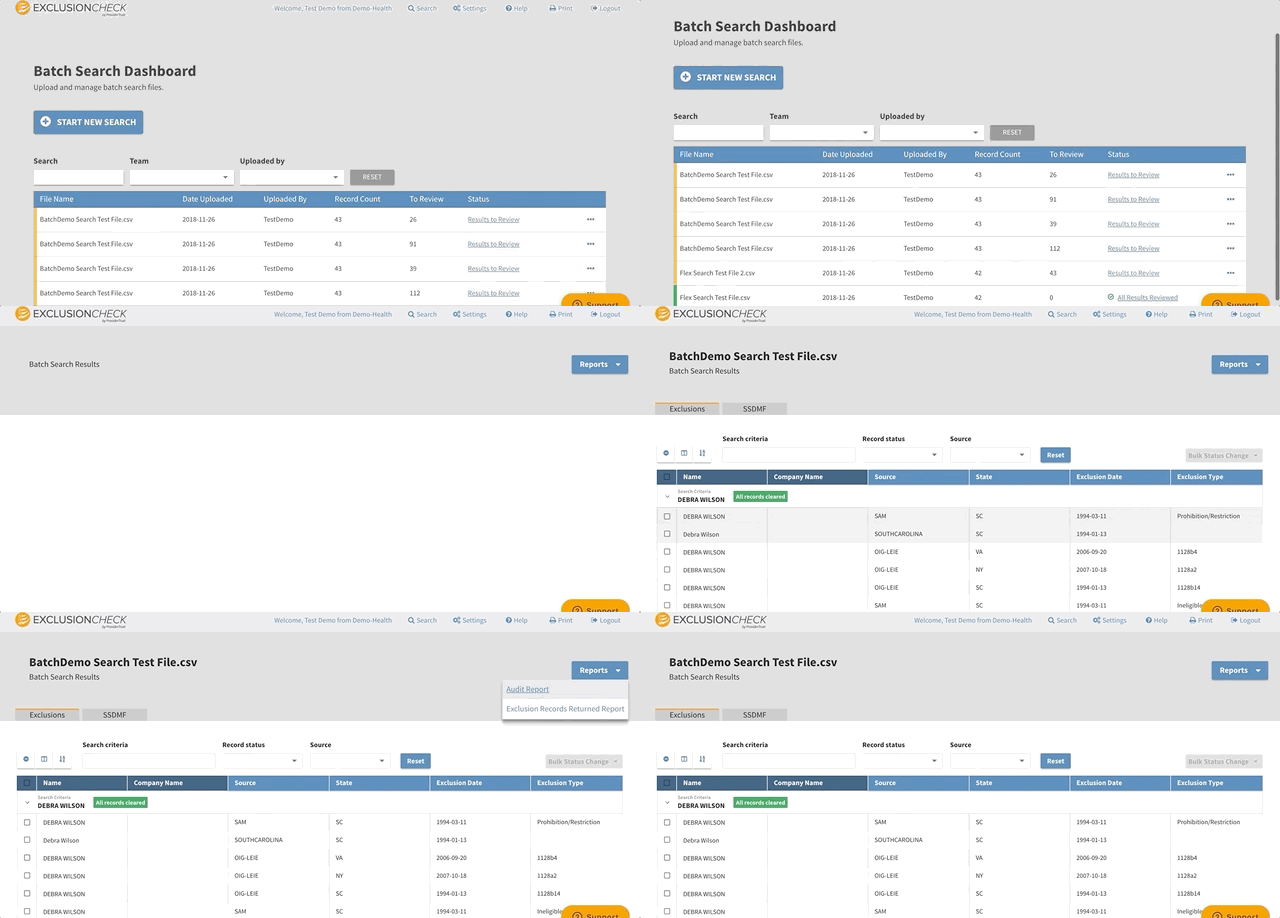
Click on Reports in the upper righthand side. You have the option to download:
Audit Report: This report includes a list of all criteria searched, results and if there are any outstanding records to review.
Exclusion Records Returned Report: This report will include a list of all potential exclusion records uncovered and your investigation findings (Needs Review, Under Review, Reviewed: Cleared, or Reviewed: Match).
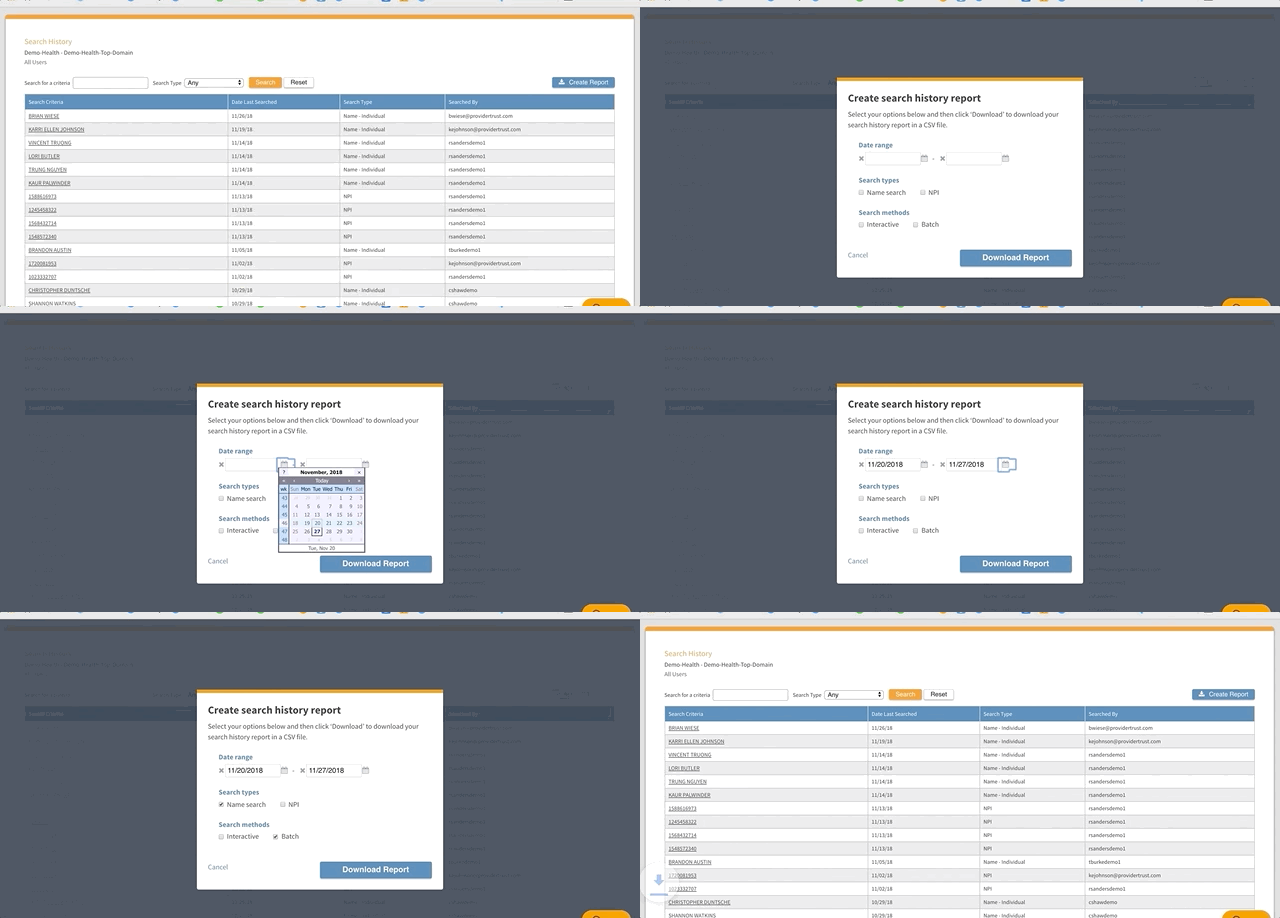
Search History: From your Search History Page (hover over Search and select dropdown for Search History), you can download a report of historical searches during a chosen timeframe and specific types of searches - Names or NPIs - as well as Interactive, Batch searches or both. Press Download to access report.
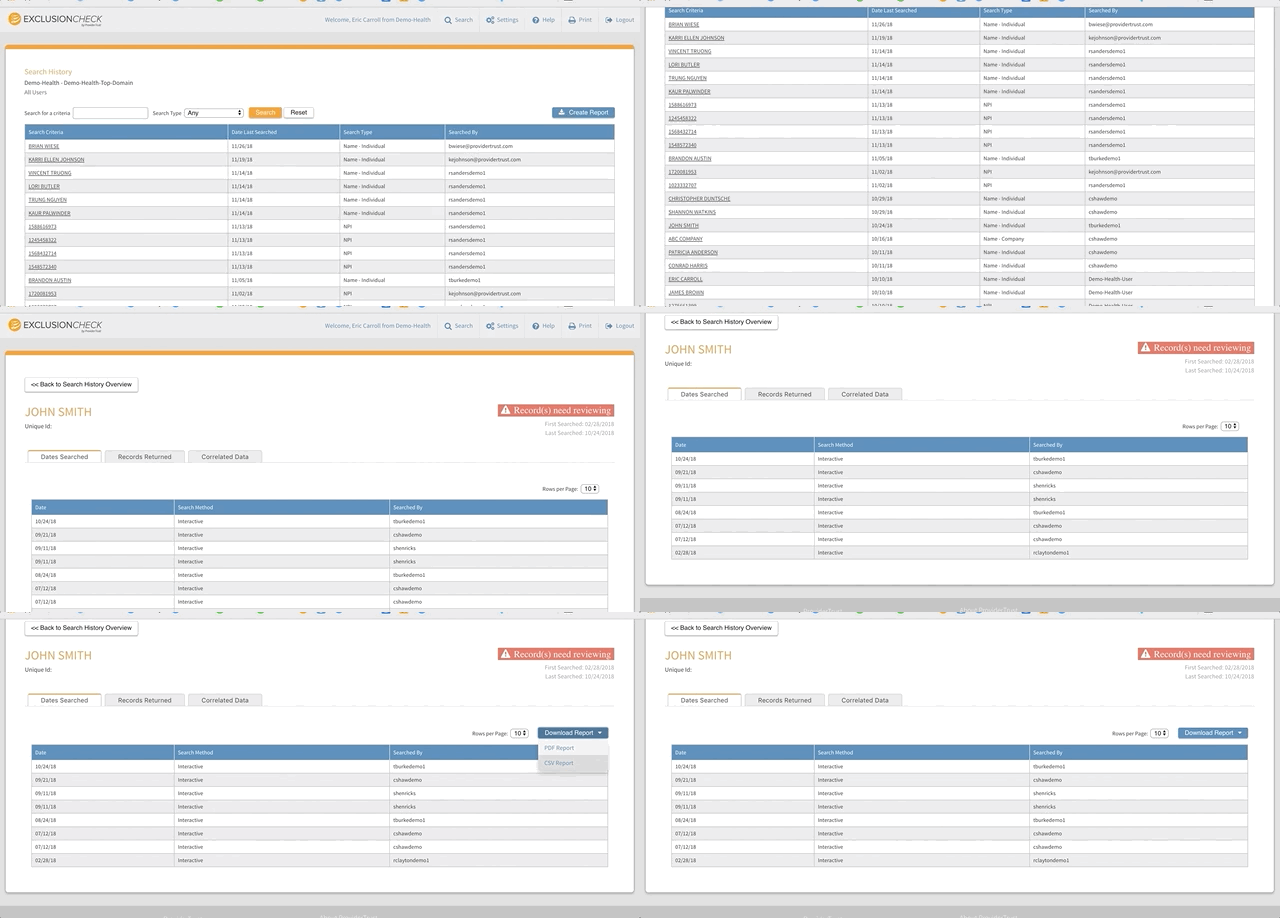
For reports on one individual, entity or NPI, find the search criteria by scrolling on the page or searching up top and click on the name or NPI number. Based on the tab you select, you can either generate a report of dates searches or any exclusion records returned for your search by clicking Download Report in the upper right hand side. You can choose either CSV or PDF format.
Comments
0 comments
Article is closed for comments.